
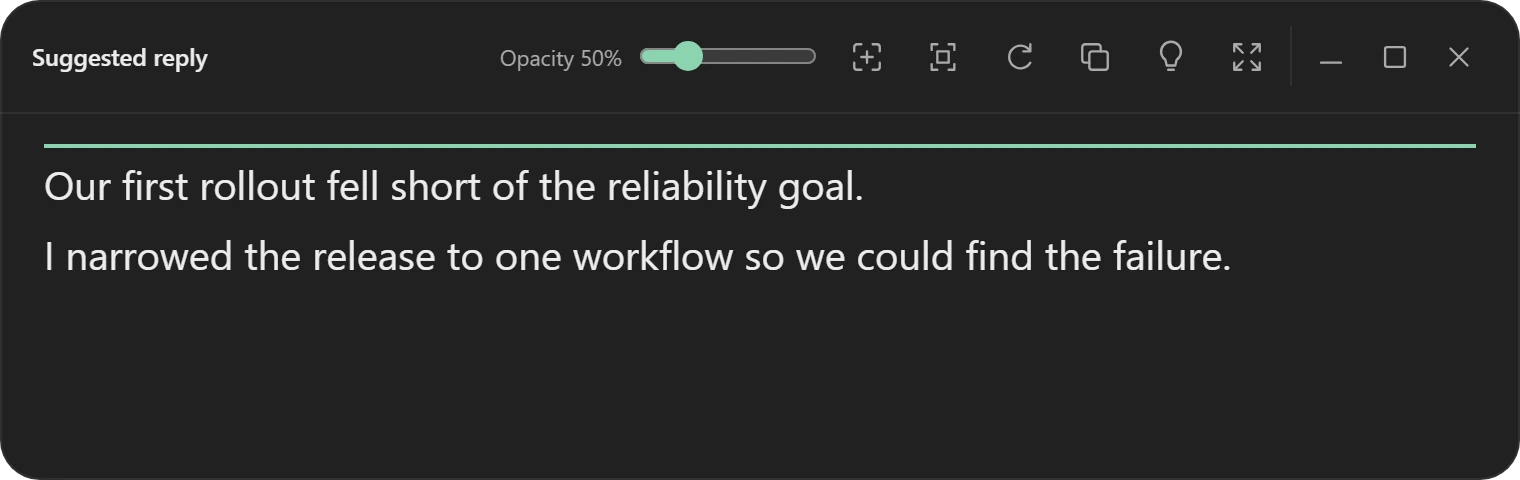
Get past the blank moment.
Ask for a brief hint, three talking points, or a possible opening line. Use the latest question or go back to one you heard earlier.
 Cue
AI COPILOT FOR WINDOWS
Cue listens to your interview or meeting and puts a short, useful suggestion in a floating panel. Add your own notes so the help fits the conversation.

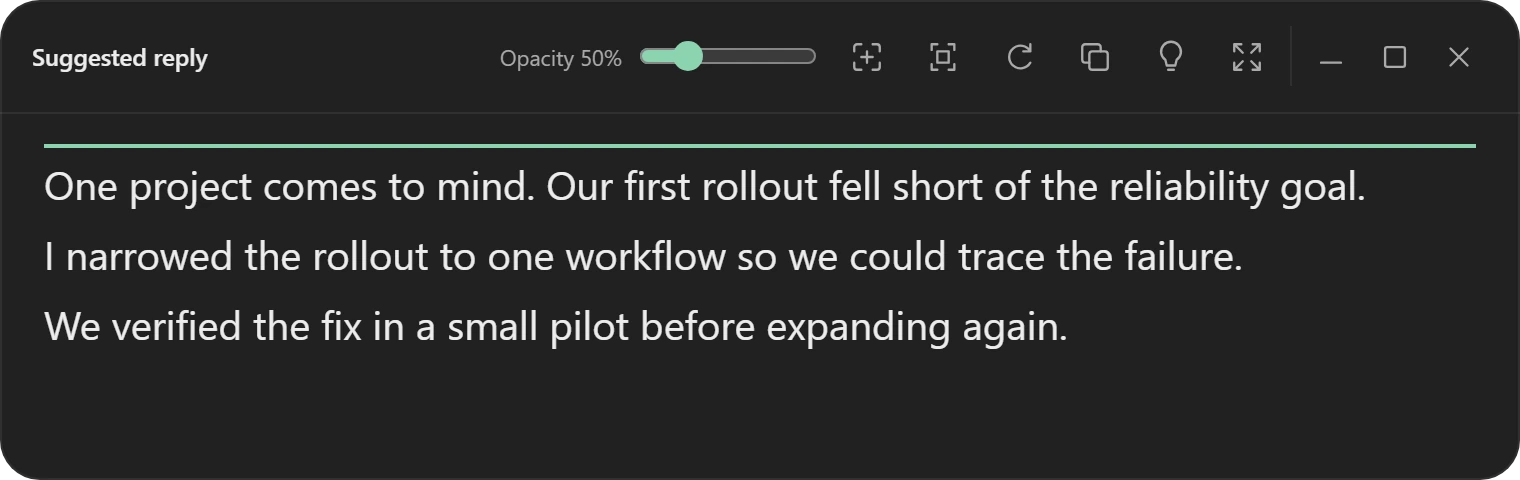
What Cue does
Ask for a nudge, work through what’s on screen, or follow the conversation in another language.
Ask for a brief hint, three talking points, or a possible opening line. Use the latest question or go back to one you heard earlier.
Set the role and goal, then choose which notes, résumé details, or job description Cue can use for suggestions.

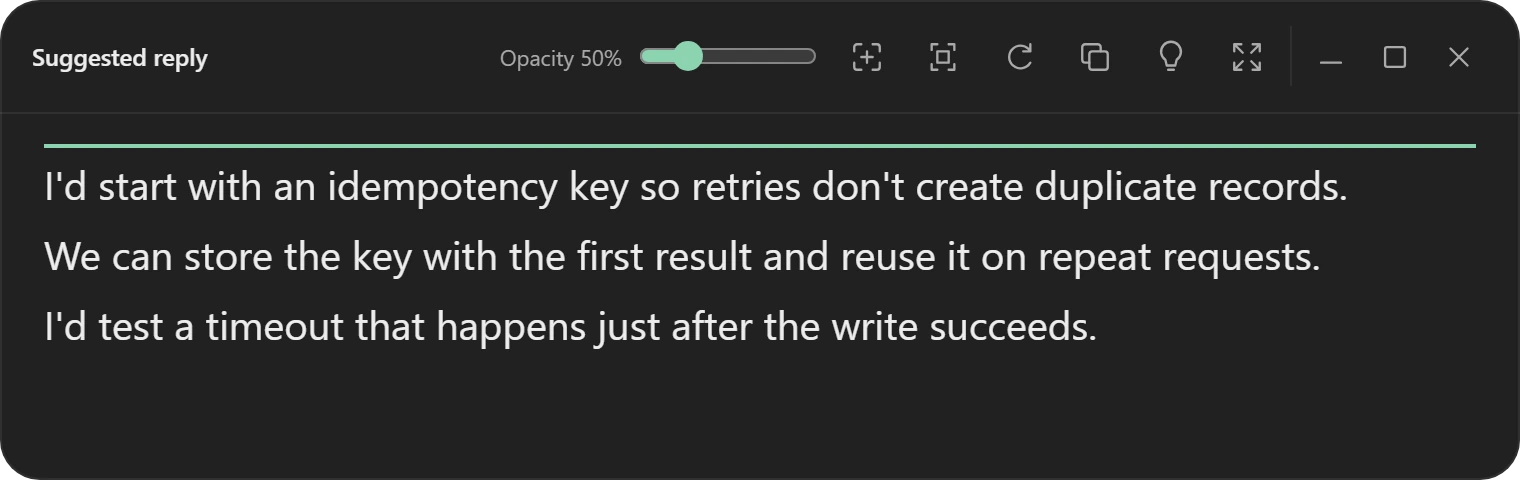
Use Check screen to select a problem, chart, or piece of code. Cue uses that region and the conversation context when it suggests a next step.
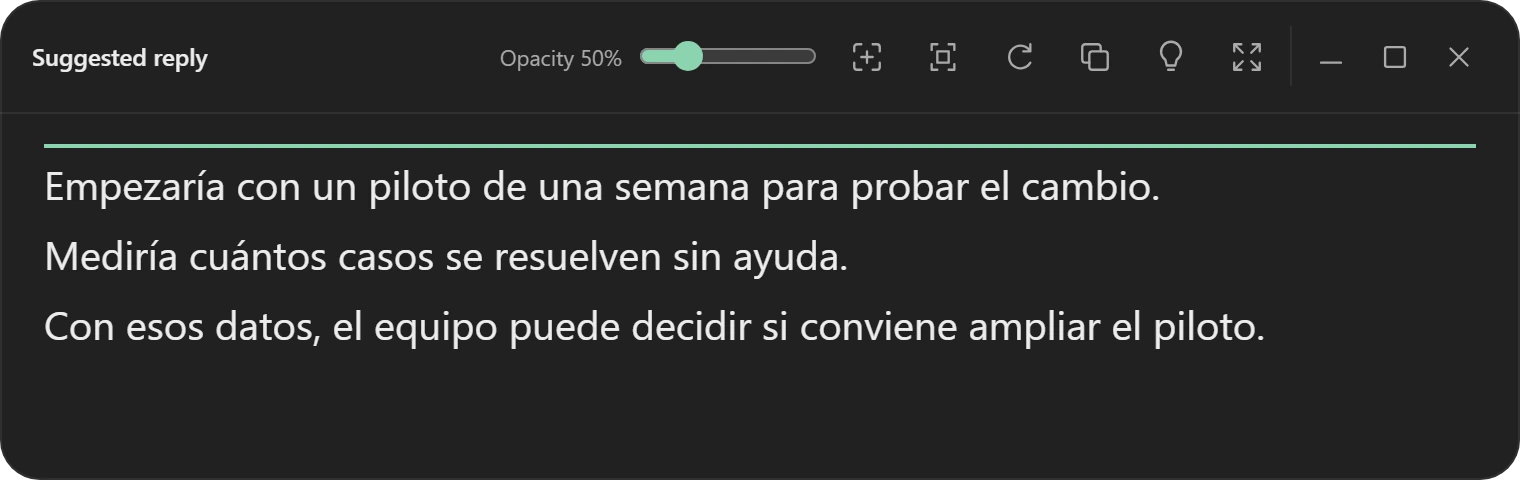
Keep the original captions, translate the conversation, and choose the language Cue uses for its replies.
Why choose Cue?
Compare what each approach gives you in the middle of a live call.
Read what was just said. You still have to decide how to start your answer.
Bring the question and any context over yourself before you can get a suggestion.
Get a starting point from the live question and the notes you chose. Move the panel and adjust its opacity while keeping the call open.
The interview moment
“Tell me about a time you turned a setback into a win.”
 Without Cue
Several stories come to mind at once. The pause grows while you try to decide where to begin.
With Cue
Cue offers a sample opening and a way to explain the result. You can adapt it to your own experience.
Illustrative interview scenario. Hiring outcomes vary.

Pick the right story and give your answer a clear beginning and result.
Follow a detailed question and organize the trade-offs you want to explain.
Bring your notes into the discussion and clarify questions as they come up.
Getting started
One account for access, devices and payment receipts. No card required to sign up.
Your email identifies your account. Email verification and automated password recovery are not available yet; keep your password safe.
Plans
Prices are in USD. Pay in crypto with no automatic renewal. Your access begins after we verify the payment.
What you need to start, how Cue helps during a call, and what happens after checkout.
Cue is a Windows desktop app. For Windows Live Captions, use Windows 11. Direct Audio is also available when speech transcription is configured for your account.
Only in Live Captions mode. With Direct Audio configured, Cue transcribes audio without reading the captions window. See how to test your input.
In Cue, open Settings → Your account → Create link code. Sign in here and enter the code under Link your desktop app within ten minutes.
Cue follows your selected Windows capture source. Start the call in your usual meeting app, then start capture in Cue.
Yes. Open Transparent overlay in Conversation, drag its header to move it, and use the slider to set opacity between 35% and 100%. Press Escape while Cue has focus to return to the workspace.
Choose Auto for suggestions as the conversation develops or Manual to ask only when you need help. In Quick help you can select an earlier caption and choose a brief hint, talking points, or wording.
Use Check screen and drag to select the relevant area. Cue uses it with your conversation context to suggest an explanation or next step. Review suggestions before using them.
Choose the spoken language for capture, then choose a reply language in Prepare. You can also turn on live translation or request a translation while keeping the original caption text.
Open Saved sessions in the desktop app to reopen a saved transcript and review the conversation.
In Prepare, set a goal and choose whether to include your résumé and job description. Check screen sends the area you select.
Cue saves session text to your selected desktop folder. When you use Direct Audio, audio is sent for transcription as you speak.
Opacity changes how transparent the panel looks on your display. Check what your meeting app shares before a call.
Managed AI sends the context needed for the request through Cue’s server to the AI provider assigned to your account. Your usage history shows request and token counts.
Each plan lists how many days, text AI requests, speech minutes, and linked devices are included. Sign in to see your remaining allowances.
Choose a plan, coin, and network. Your invoice shows the exact amount, address, and wallet QR code. Send the payment before the countdown ends, then submit your transaction hash for verification.
The plan picker shows the currently available coins and networks, including USDT and USDC where enabled. Match the network and any required memo or tag on your invoice.
Once an amount is issued, an invoice is payable for up to 59 minutes and 59 seconds. If you already sent funds, open the expired invoice and submit the transaction hash for review. Otherwise, get a new invoice before paying.
Access lasts for the period stated on the plan. Choose a plan and request a new invoice when you want to renew.
Your administrator assigns the AI profile used by Cue. Any upgrade offer they send appears in your account for your approval.
Pay the exact amount on the invoice network. After sending it, submit your transaction hash so we can verify the transfer and activate your purchase.
Requests handled by the managed server. Your subscription price is separate from the provider's estimated AI cost. Older direct-provider activity is unavailable.
On Windows 11 version 22H2 or later, press Windows + Ctrl + L to start Live Captions and finish the language setup.
If Windows can’t download the language files, get the offline speech pack from Microsoft. Choose the pack that matches your Windows display language and system type.
Extract the download, open the included MSIX, then start Live Captions again. The English (US) x64 pack requires Windows build 26100.3915 or later. If the shortcut is unavailable, check your Windows version and updates first.
In a Cue build with the setup test, open Prepare a conversation, expand Capture & connection, and choose Test my setup. Play speech through your speakers or speak into the selected input. Live Captions shows the first new caption Cue reads. Direct audio checks for a signal on each configured input. The test runs locally and creates no session.